Will overwrite work with my theme gallery, slider, or slideshow?
Usually, but it depends on how your theme, page builder, gallery widget, or slideshow plugin stores and displays images.
Desktop Media Uploader replaces matching files in the WordPress Media Library. If your gallery or slideshow uses the same WordPress media attachment, the updated image will normally be used.
Some themes, page builders, sliders, and gallery plugins store image URLs, generated thumbnails, cached copies, custom crops, or separate slide data. In those cases, replacing the Media Library file may not update the gallery or slideshow. You may need to clear the plugin/theme cache, regenerate thumbnails, update the slide/gallery item, or reselect the image depending on how that tool works.
For best results, test overwrite with one image before replacing a large gallery or slideshow batch.
See also: Overwrite compatibility
Do I need to configure Desktop Media Uploader before uploading?
No. Desktop Media Uploader is designed to work out of the box with sensible defaults and a near-zero learning curve.
The default image-size settings match standard WordPress media defaults. Optional WebP and AVIF settings use commonly used image optimizer defaults, making it easy to start with familiar settings and adjust them later if needed.
If you already know how to use the WordPress Media Library uploader, the basic workflow will feel familiar: drop your files, review the selected images, and start the upload.
Most users can connect their WordPress site, drop files into the app, and start uploading without changing the advanced settings.
I prefer to use my server’s image processing tools. Can Desktop Media Uploader still be useful?
Yes. Desktop Media Uploader does not require you to use its image resizing or modern-format image creation features.
If you prefer to use your existing server-side image optimizer, CDN image service, or WordPress image-processing workflow, you can set Desktop Media Uploader to upload only the original image files.
To do this:
- Disable Optimize Original
- Disable all generated image sizes
- Do not enable WebP creation
- Do not enable AVIF creation
With those options disabled, Desktop Media Uploader uploads your original image files without creating additional processed copies.
In a simple 63-image test on a budget shared host, using matching image settings on the server and in Desktop Media Uploader:
- WordPress Media Library upload: about 4 minutes, with CPU usage over 60% during upload
- Desktop Media Uploader upload: about 1.3 minutes, with CPU usage under 10% during upload
In that test, Desktop Media Uploader reduced upload time by about 70% and reduced CPU usage during upload by about 95%.
Actual results will vary depending on hosting, image sizes, network speed, WordPress configuration, and active plugins.
Even when server-side image processing is preferred, Desktop Media Uploader can still provide faster bulk uploads, unlimited upload file size, lower server CPU usage during upload, automatic retry handling, and optional bulk overwrite support.
Your existing server-side tools can then process, optimize, compress, or deliver the uploaded images according to your site’s normal configuration.
Can Desktop Media Uploader help with recurring promotional images?
Yes. Desktop Media Uploader can help stores, restaurants, service businesses, clubs, and other organizations that update promotional images on a regular schedule.
For example, a site may display weekly specials, menu items, guest artist schedules, daily promotions, event announcements, featured products, or other recurring visual content in a compatible slider, gallery, or page section that uses WordPress Media Library images.
In many cases, these promotional images do not need a link at all. They may simply display text and graphics, such as a menu special by day or a guest artist list for the week.
By keeping the same image file names and enabling Desktop Media Uploader’s overwrite feature, the site owner can upload updated promotion graphics from the desktop app while the existing slider or page continues using the same Media Library images.
This can make recurring image updates faster and less error-prone because the site owner does not need to manually replace each image in the Media Library or rebuild the display each time.
No slider rebuild. No repeated image replacement. Just update the graphic and upload.
Can I preserve image dates when uploading old photos?
Yes. Desktop Media Uploader can help schools, churches, clubs, historical groups, and other organizations upload older image collections while preserving useful date organization in the WordPress Media Library.
For example, a school may want to highlight student work, class projects, events, sports teams, or graduation photos by year. If years of images are uploaded through the normal WordPress uploader on the same day, the Media Library may group them under the upload date instead of the dates that match the image collection.
Desktop Media Uploader can use the file time when creating WordPress media entries. This allows older images to be organized under the file’s year and month in the Media Library instead of being grouped only by the day they were uploaded.
The file time used is the file’s modified date. If the files have been modified since they were created, they will be uploaded using the modified date, not the original creation date.
If you know that a batch of files belongs to a specific year and month, use the custom date option instead. This lets you set the upload date for that batch so the images are grouped where you expect them in the Media Library.
That can make Media Library browsing, date filtering, and future image searches much easier. Instead of manually sorting a large mixed upload, the site owner can keep historical images grouped by date as they are added to WordPress.
This workflow is useful for school archives, yearly project galleries, scanned photo collections, historical websites, event archives, club records, church photos, and other image collections where the date matters.
Preserve the timeline during upload instead of spending hours manually sorting old images later.
Who is Desktop Media Uploader for?
Desktop Media Uploader is for WordPress site owners, photographers, developers, agencies, store owners, designers, and other users who need a faster, cleaner way to upload, replace, process, or revise WordPress media files.
It is especially useful for image-heavy sites, WooCommerce product catalogs, portfolio websites, client review workflows, site builds, migrations, and projects where uploading or replacing media through the normal WordPress browser uploader becomes slow, time-consuming, or error-prone.
Desktop Media Uploader works with the WordPress Media Library. Images uploaded by Desktop Media Uploader can be used by themes, page builders, galleries, sliders, WooCommerce products, and other tools that use Media Library images directly.
For photographers, Desktop Media Uploader can make client image review workflows easier. A photographer can upload images to the WordPress Media Library, display them with a compatible gallery, slider, theme, or page builder, and share one review link with the client. If revisions are needed, the photographer can keep the same file names, enable overwrite, upload revised images, and optionally use a different watermark file for each revision.
This workflow can be useful for large commercial projects, but it can also help with smaller sessions where not everyone can be in the studio at the same time. For example, a family photo session may need input from grandparents, relatives in another location, or clients with limited mobility.
For beginner photographers building a first portfolio site, Desktop Media Uploader can also help when the site is hosted on a low-cost shared hosting plan. Image resizing, optimization, WebP conversion, AVIF conversion, and watermarking are handled by the desktop app instead of placing all of that work on the web server. This can make uploads and image changes faster while reducing server resource strain.
For WooCommerce stores, Desktop Media Uploader can help with product image updates, supplier image changes, seasonal catalog refreshes, corrected product photos, branding updates, and large product-image cleanup projects. Standard WooCommerce product images and product gallery images use the WordPress Media Library, so keeping the same file names and using overwrite can make product image updates faster and less error-prone.
For WordPress developers, freelancers, agencies, and system integrators, Desktop Media Uploader can become a practical setup and maintenance tool for client sites. The developer can install the WordPress plugin, confirm the connection, and help configure the media workflow. In many projects, the client installs the desktop app because the client usually has the original image files.
The developer sets up the WordPress side. The client keeps control of the image files. Desktop Media Uploader connects the two.
The developer can use the trial to confirm that Desktop Media Uploader works with the client’s WordPress site, hosting account, and media workflow. If the tool becomes part of the client’s ongoing image workflow, the client can purchase a site license for continued use.
Desktop Media Uploader does not replace gallery plugins, sliders, themes, page builders, WooCommerce, or image display tools. It complements them by making the media preparation, upload, overwrite, watermark, and revision workflow faster and less error-prone.
Compatibility depends on how your site displays and stores images. Desktop Media Uploader works best with tools that use images directly from the WordPress Media Library. If a plugin copies image files into its own storage, creates separate image records, uses external or virtual images, or replaces WordPress Media Library image handling, overwritten files may not update automatically in that plugin.
The same results may be possible manually, but Desktop Media Uploader helps reduce the waiting, repeated uploading, server processing, and revision confusion that often come with media-heavy WordPress projects.
Let Desktop Media Uploader handle the heavy media workflow before your compatible WordPress tools display the images.
Can Desktop Media Uploader help with WooCommerce product images?
Yes. Standard WooCommerce product images and product gallery images use the WordPress Media Library, which makes WooCommerce a good fit for Desktop Media Uploader workflows.
For product image updates, keep the revised image file names the same, enable Desktop Media Uploader’s overwrite feature, and upload the updated images from the desktop app. In many standard WooCommerce setups, the products can continue using the existing Media Library images while the underlying files are replaced.
This can be useful for seasonal catalog updates, supplier image changes, corrected product photos, branding updates, and large product-image refreshes.
Compatibility may vary if your store uses plugins or custom code that copy images into separate storage, use external/virtual image attachments, or replace WooCommerce’s normal Media Library image handling.
Will Desktop Media Uploader overload my server?
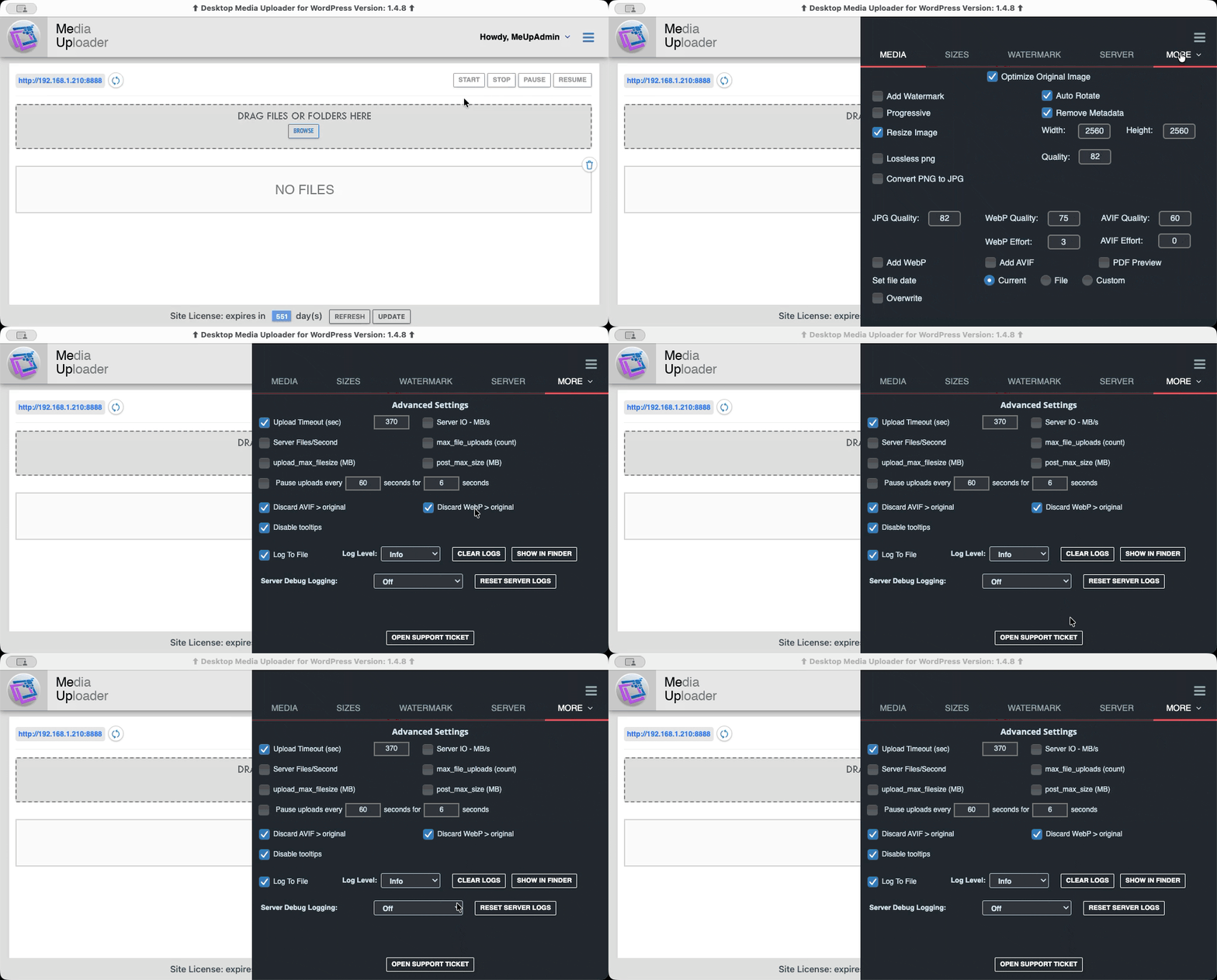
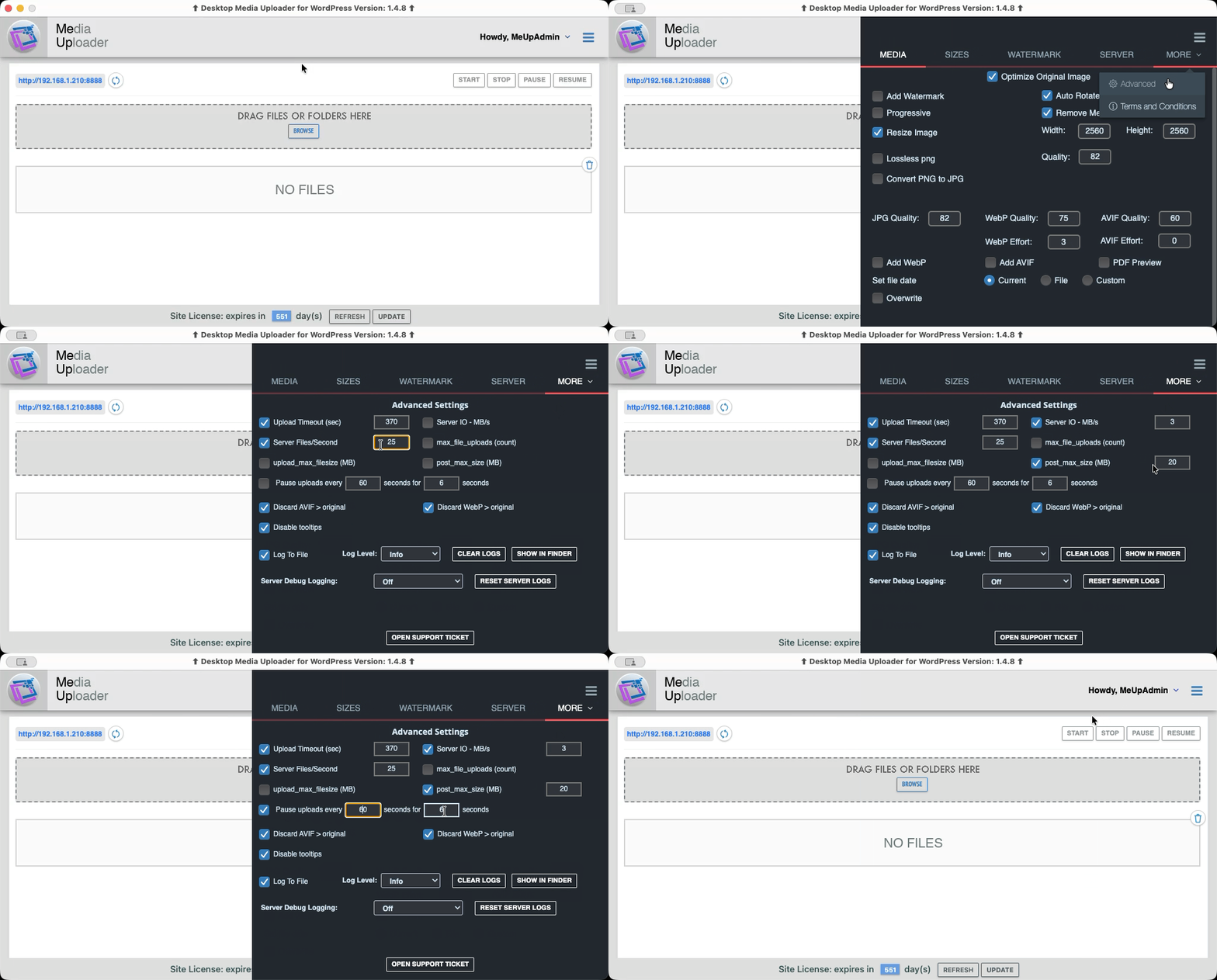
WordPress hosting providers offer a wide range of products, and some plans have very limited server resources. By default, Desktop Media Uploader uploads files as quickly as possible, which could overload resource-limited servers. To help avoid server overload, use these Advanced Settings to throttle Desktop Media Uploader uploads.
| Server IO – MB/s | Limits Desktop Media Uploader’s disk I/O. Please review your hosting provider’s TOS before setting this value. |
| Server Files/Second | Limits the number of files processed each second, reducing CPU usage. |
| post_max_size (MB) | Limits the payload size of each post sent to the server. Enable this if you’re experiencing upload timeout or socket hangup network errors. Desktop Media Uploader’s default payload is 25 MB. |
| Pause Uploads | Forces uploads to pause every selected number of seconds for a selected pause duration. The upload progress bar color changes to amber during the pause. |
What happens if I do not renew my annual license? Will Desktop Media Uploader continue to work?
Desktop Media Uploader requires an active license to upload files. Without an active license, you will not be able to upload files.
How do I see WordPress server changes in the Desktop Media Uploader app?
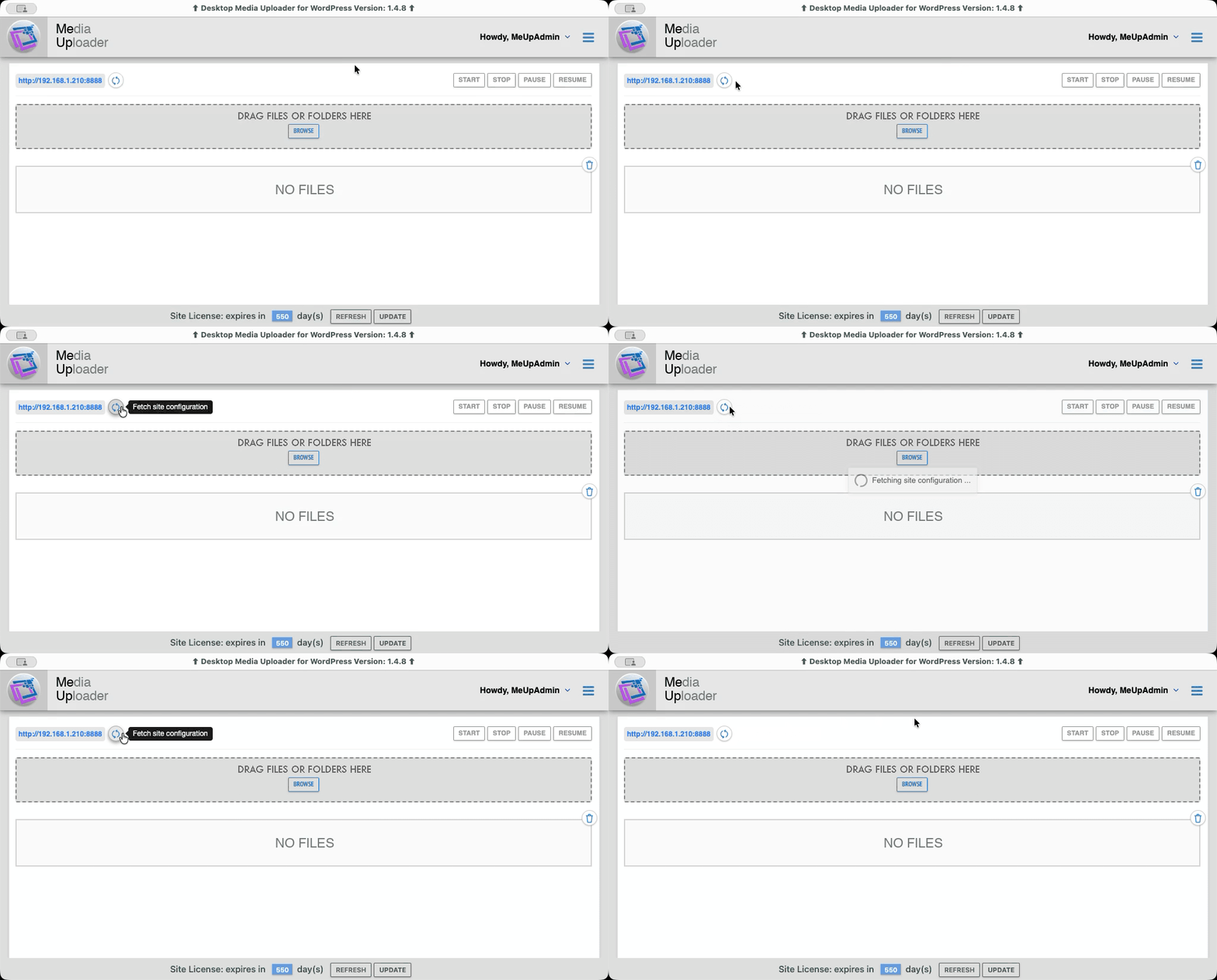
After making changes to your WordPress site configuration, just click the desktop app’s refresh icon (next to the site url) ( Show Me ).
Does Desktop Media Uploader modify my documents?
No – Desktop Media Uploader doesn’t modify or delete any of your original media files. Also, no temporary media files are created by Desktop Media Uploader, so there is no need to worry about SSD wear.
I’m having a problem, how do I contact support?
Please use the ticket-based help desk system available at Desktop Media Uploader Help Desk.
You can also open a support ticket from your Desktop Media Uploader desktop app ( Show Me ).